Free up space on your Android TV —
and switch off the bloat
Free to use · No root · No ads · No accounts
Everything is free except one thing: disabling or removing system apps in Debloat is a one-time purchase in Google Play — no subscription.
Trimo is a storage cleaner built for Android TV and Google TV. It shows exactly where the space went, clears junk files and app caches, helps you uninstall apps you no longer use and disables pre-installed apps you never open — reversibly, with no root and no computer. It runs on the TV and is controlled with the remote.
Get it on Google PlayHow do you free up storage on an Android TV?
Measure first, then remove what you do not use. Many Android TVs and boxes ship with as little as 8 GB, and apps, caches and downloaded files fill it quickly. Trimo’s Breakdown screen shows where the space went — your apps, system apps, files and media, and the operating system — measured on the device, not estimated. From there you can delete junk files, uninstall apps you no longer use and switch off pre-installed apps you never open. No root, no PC and no phone app are needed: everything is done with the TV remote.
Clean up your TV in three steps
Open Trimo, look, decide, confirm. Nothing is changed on the TV until you press the confirm button of a section. Full setup guide.
01
Look at the Breakdown
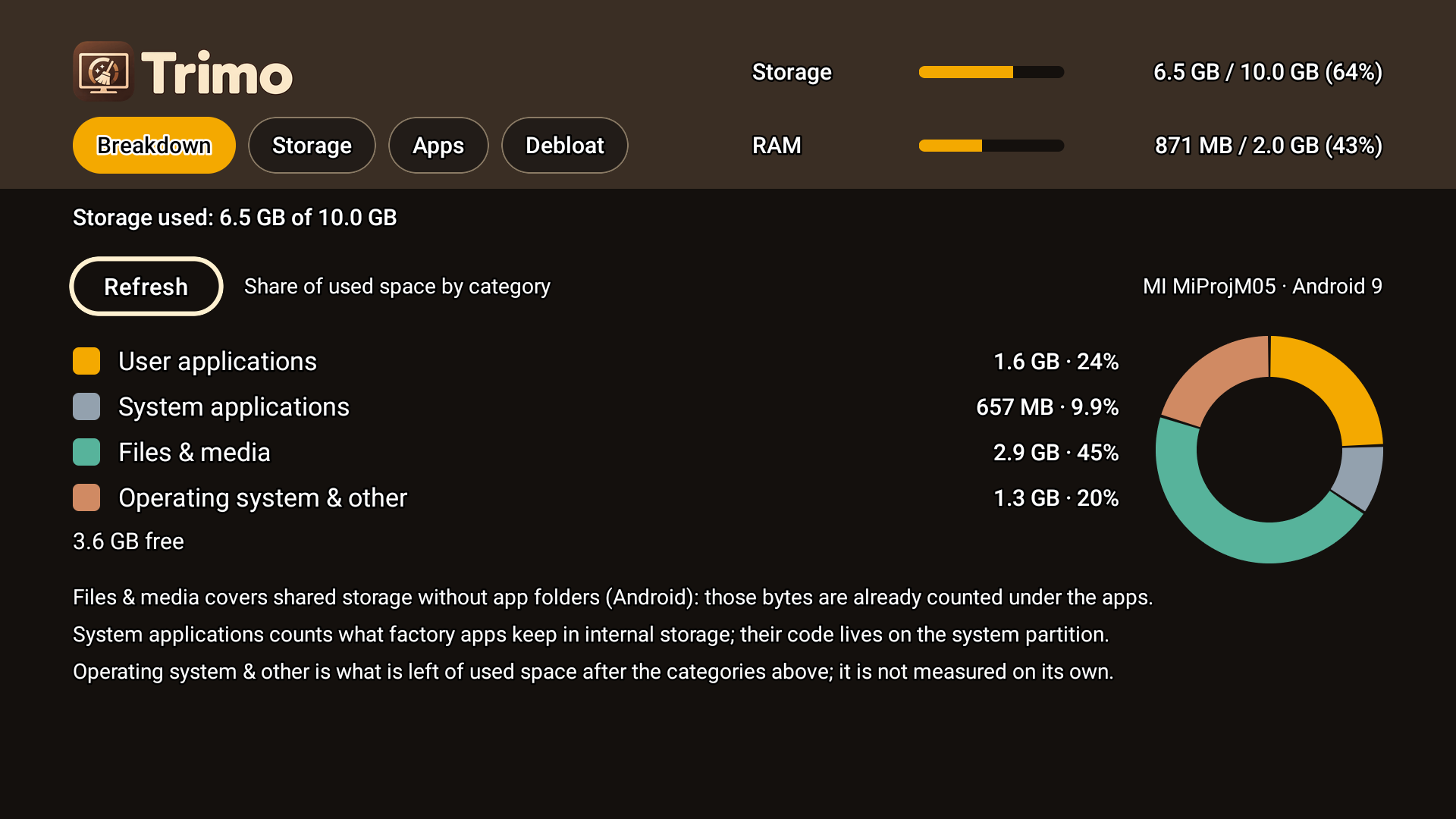
Trimo opens on a ring chart of the used space by category, measured on your TV.
02
Clean files and apps
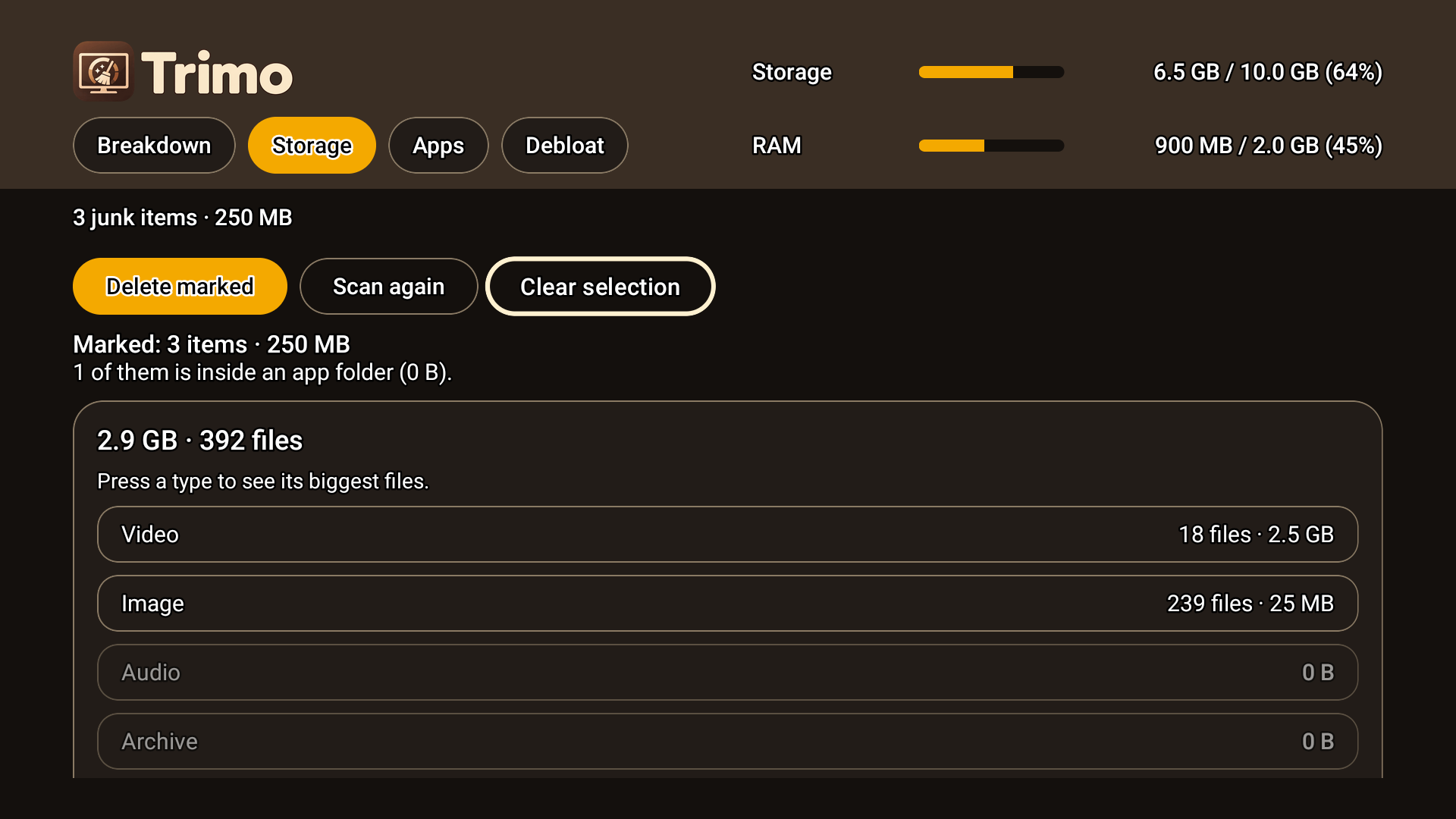
Scan for junk, browse the biggest files by type and pick apps to uninstall. Nothing is deleted before you confirm.
03
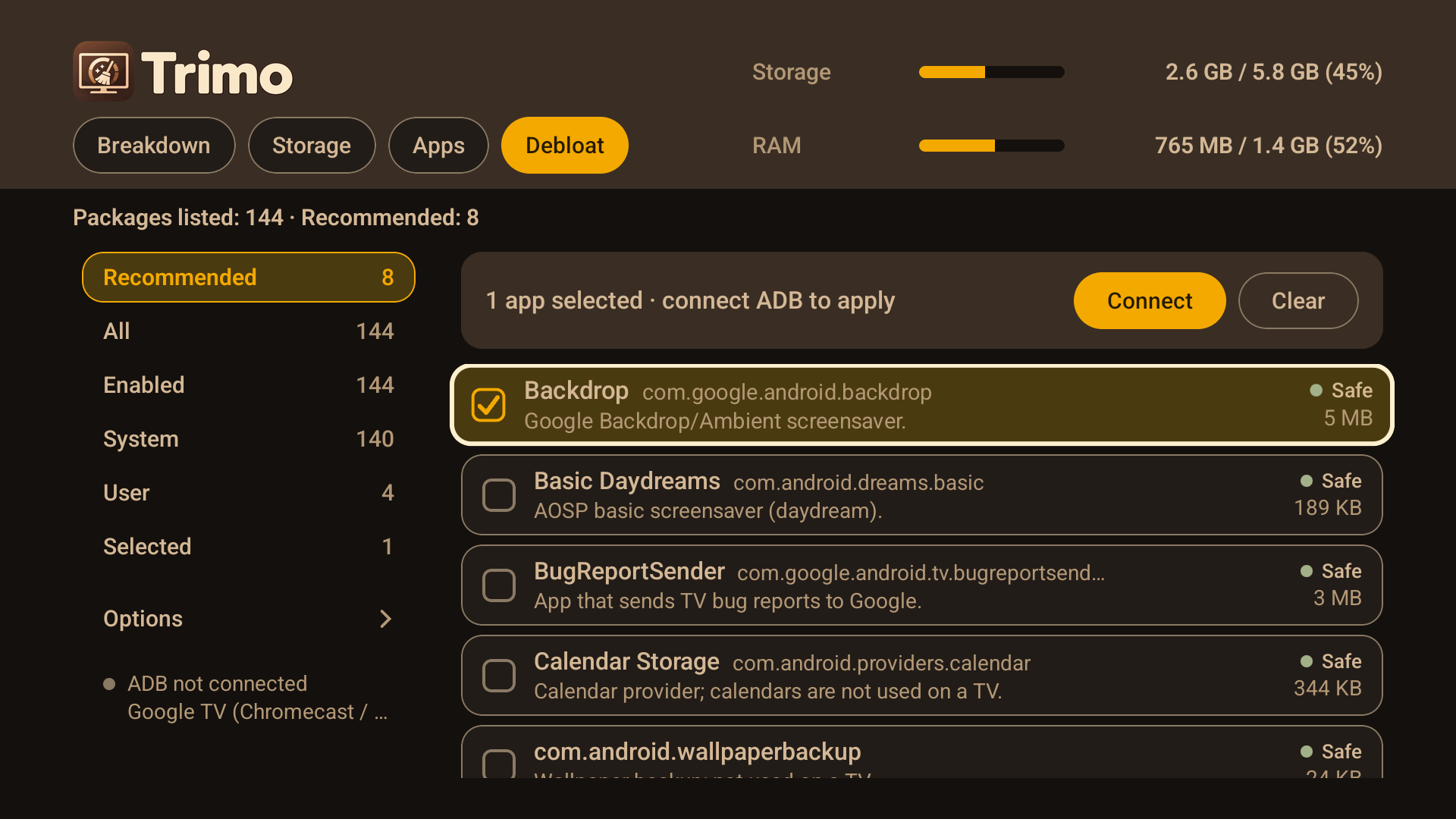
Debloat, reversibly
Select the recommended pre-installed apps and disable them. Keep the result within 15 seconds or the TV reverts it; Undo all changes brings everything back.
Five screens, one job each
Breakdown measures used storage by category and shows the free space next to the Storage and RAM gauges in the header. It only measures and never touches anything. When a category cannot be measured, Trimo writes “Not measured” instead of guessing.
Storage scans shared storage, groups junk that is safe to remove — logs, empty folders and old installer files in Downloads — and lets you drill down from a file type to single files, largest first. Photos, videos and music are never suggested automatically; you can still mark them by hand. Marked files are deleted only after a confirmation that says deleted files cannot be recovered.
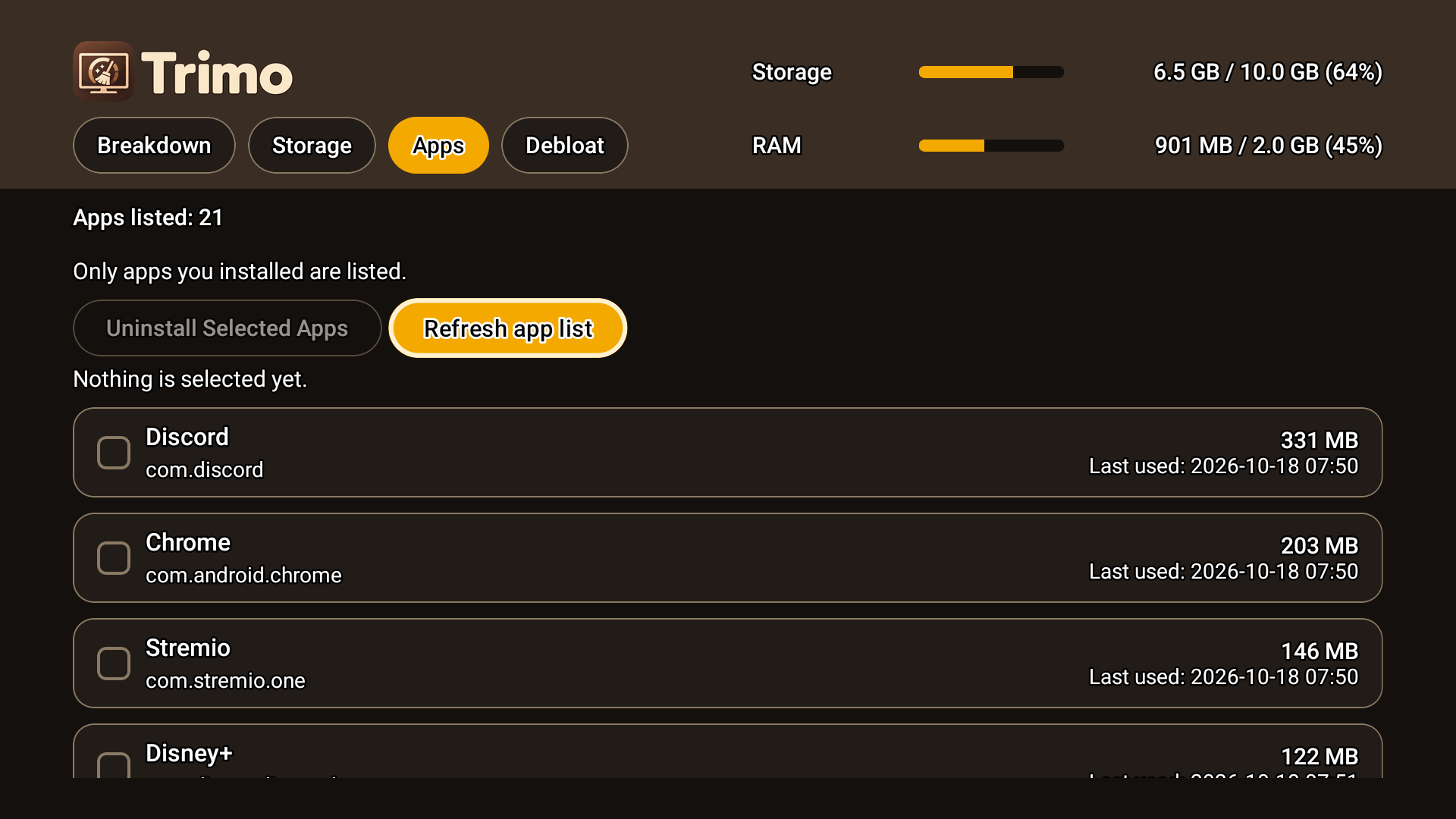
Apps lists only the apps you installed, with data, cache and APK size and the last-used date when the TV reports it. Select the ones you want gone and Android’s own uninstall dialog opens for each one, so Trimo never removes an app by itself. Debloat reads every installed package, explains what it is, rates it Safe, Your call, Keep or Protected, and disables or removes the ones you choose for the current user.
Cache clears the cached files of every app on the TV in one step. Accounts, settings and app data are kept, and apps rebuild their cache as you use them. Trimo measures the space freed afterwards and never promises a number. It needs the same one-time USB debugging approval as Debloat.
| What it is | Storage cleaner and system-app manager for Android TV and Google TV |
|---|---|
| Platform | Android TV or Google TV on Android 5.0 or newer; Debloat actions need Android 8 or newer |
| Controls | TV remote (D-pad) only — no phone app, keyboard or computer needed |
| Cleaning | Junk files, files you mark by hand, apps you pick and app caches |
| Debloat | Disable or remove pre-installed apps for the current user; reversible, with a journal and Undo all changes |
| Price | Free; disabling or removing system apps is a one-time purchase in Google Play (no subscription) |
| Privacy | No accounts, no ads; anonymous usage statistics only |
| Languages | 10: English, Español, Português, हिन्दी, العربية, Русский, Deutsch, Français, Bahasa Indonesia, Türkçe |
| Not included | No RAM booster, no process killing, no “speed boost” claims, no root |
Highlights
Honest numbers
Every size and percentage is read from the TV. If something cannot be measured, Trimo says “Not measured”.
Reversible debloat
Each change is written to a journal before it runs, verified afterwards and can be undone with Restore or Undo all changes.
Protected apps
The home screen, keyboard, Settings, Trimo itself and the core services of known TV brands are protected and cannot be disabled.
Built for the remote
Every screen is designed for the D-pad and for reading from the sofa. Nothing needs a mouse, keyboard or phone.
Private by design
No accounts, ads or ad tracking. Only anonymous usage statistics are sent; the debug connection goes to the TV’s own service on 127.0.0.1.
10 app languages
The interface follows the language of the TV. Any other language shows English. This website is available in the same ten languages.
How Debloat stays safe
Trimo never uses root, never flashes anything and never deletes system files. It only changes the state of a package for the current user, with Android’s own package commands.
Protected list
Home, keyboard, Settings, Trimo and the core services of known TV brands cannot be selected.
Confirm first
Every disable or remove asks for confirmation, and the focus starts on Cancel.
Journal and 15 seconds
Each change is journaled before it runs. Afterwards you have 15 seconds to press Keep changes — otherwise the TV reverts it.
Undo all
Restore a single app or press Undo all changes to re-enable everything Trimo changed.
Supported devices
Android TV side
Android TV or Google TV on Android 5.0 or newer — a box, smart TV or streaming stick, for example from Xiaomi, TCL, Sony, Philips, Hisense or NVIDIA. Trimo knows the protected system services of these brands.
Debloat requirements
Debloat actions need Android 8 or newer and USB debugging turned on in Developer options. On older versions the package list stays read-only.
Storage access
Android 6 to 10 asks for storage access in a system dialog. Android 11 and newer uses the “All files access” setting, which Trimo opens for you.
Not targeted
Phones and tablets are not targeted: Trimo is built for the TV interface and the remote control.
Screenshots
Frequently asked questions
How do I free up space on my Android TV?
Open Trimo’s Breakdown to see what uses the space, then use Storage to delete junk and large files you no longer need, Apps to uninstall unused apps, Cache to clear app caches and Debloat to disable pre-installed apps. Every step asks for confirmation.
Is Trimo free?
Yes, apart from one thing. Measuring, scanning, deleting files, uninstalling apps, Restore and Undo are free. Disabling or removing system apps in Debloat is a one-time purchase in Google Play — no subscription.
Do I need root or a computer?
No. Trimo runs on the TV. For Debloat and Cache you turn on USB debugging once in Developer options and approve the TV’s prompt; Trimo then talks to the TV’s own debug service on 127.0.0.1. No computer or cable is involved.
Is it safe to disable system apps?
Trimo only offers reversible changes: protected apps cannot be selected, every action needs confirmation, each change is journaled and you have 15 seconds to revert it. Still, disable only what you understand — the Safe, Your call, Keep and Protected ratings tell you how risky each app is.
Will Trimo make my TV faster?
Trimo does not claim to speed up your TV: it does not stop apps, kill processes or free RAM. Freeing storage helps when a TV is nearly full, and disabling pre-installed apps you never use removes clutter.
Does it delete my photos or videos?
Never automatically. The junk scan does not suggest media files. In the file browser you can mark any file by hand, and deletion runs only after a confirmation that warns deleted files cannot be recovered.
Which permissions does Trimo need, and why?
Storage access to scan and delete the files you mark, Usage access for app sizes and last-used dates, the list of installed apps for Apps and Debloat, the system uninstall request, and Internet to reach the TV’s own debug service on 127.0.0.1 and to send anonymous usage statistics. The billing permission comes from the Google Play Billing library. Details are in the privacy policy.
What data does Trimo collect?
Only anonymous usage statistics, sent through Google Analytics for Firebase: which screens and features are used, counts, size ranges and whether an action succeeded. Never file names, app names or personal data, and no advertising ID is collected. There are no accounts or ads, and Google Play handles the one-time purchase. See the privacy policy.
Does Trimo work without internet?
Yes. Scanning, cleaning and debloating all work offline. Anonymous usage statistics are sent only when a connection exists; Google Play needs a connection only to confirm the purchase. The Internet permission is also used for the TV’s own debug service on 127.0.0.1.
How do I turn on USB debugging on my TV?
Settings → Device Preferences → About → press Build 7 times, then Settings → Developer options → turn on USB debugging. In Trimo’s Debloat or Cache screen press Connect and choose “Always allow” on the TV. See the setup guide.
Can I undo what Debloat changed?
Yes. Restore re-enables one app and Undo all changes re-enables everything Trimo changed, using its journal. After each action you also have 15 seconds to revert it.
Why are some apps marked Protected?
They are needed to start the TV, show the home screen, open Settings or switch inputs. Trimo does not let you disable them.
Which devices are supported?
Android TV and Google TV devices on Android 5.0 or newer; Debloat actions need Android 8 or newer. Trimo has been tested on a Xiaomi Mi Box (Android 9) and an Android 14 TV emulator. Other devices should work but have not all been tested.
Which languages does Trimo support?
The interface follows the language of the TV: English, Español, Português, हिन्दी, العربية, Русский, Deutsch, Français, Bahasa Indonesia and Türkçe. Any other language shows English.
Last updated: 2026-10-30 · App version 1.0.0.